Adding and managing users on your SA Youth Partner Network profile
How to create additional profiles for your colleagues on your SA Youth Partner Network profile
It is important that each person using your SA Youth Partner Network profile, has their own login credentials. You can add, edit and view all of the users with access to an organization's Partner Network profile easily.
Adding Users on your Partner Network profile
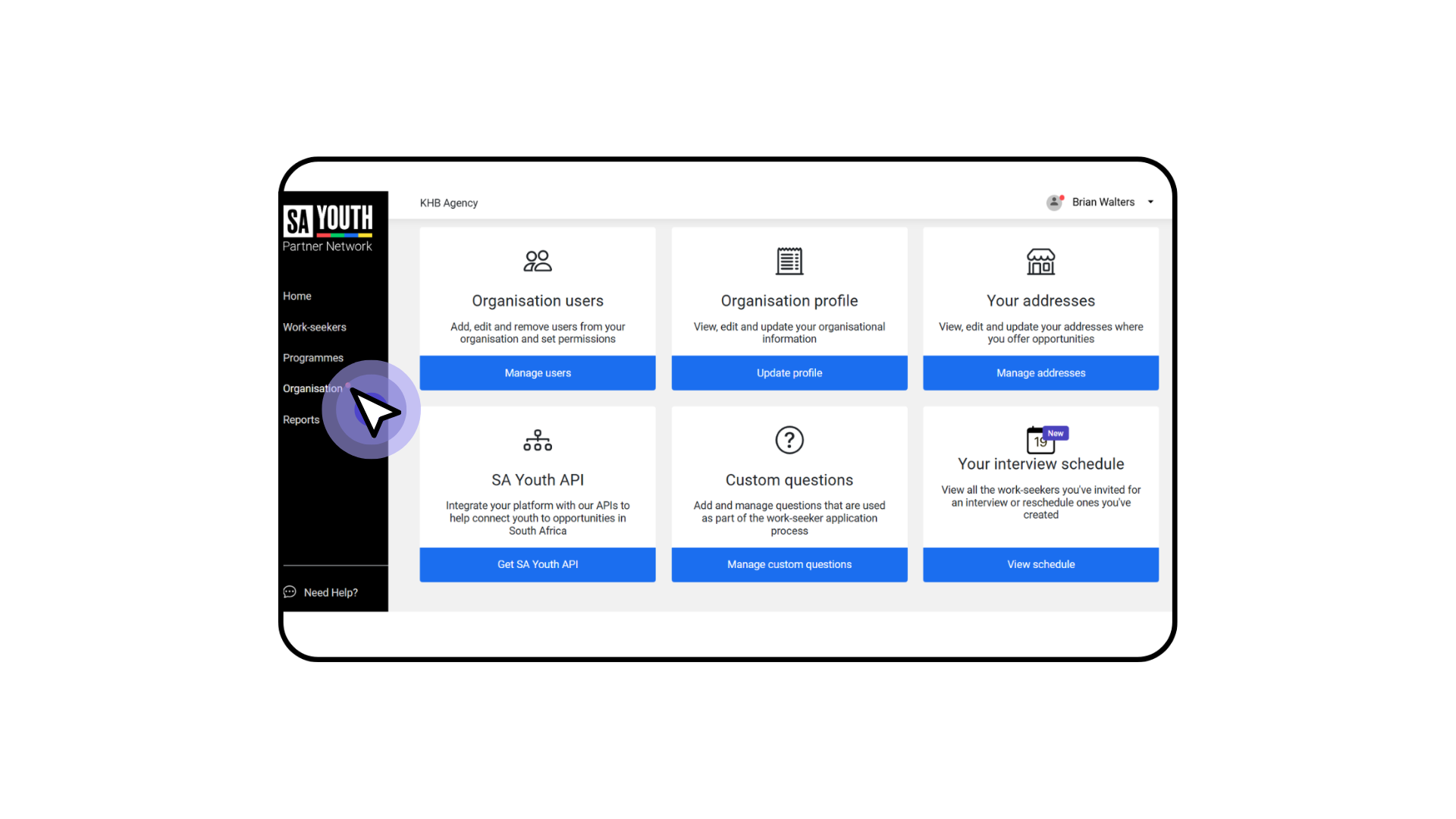
1. Once you have logged into your Partner Network profile click on, from the left-hand menu on the Partner Network dashboard, select Organisation.
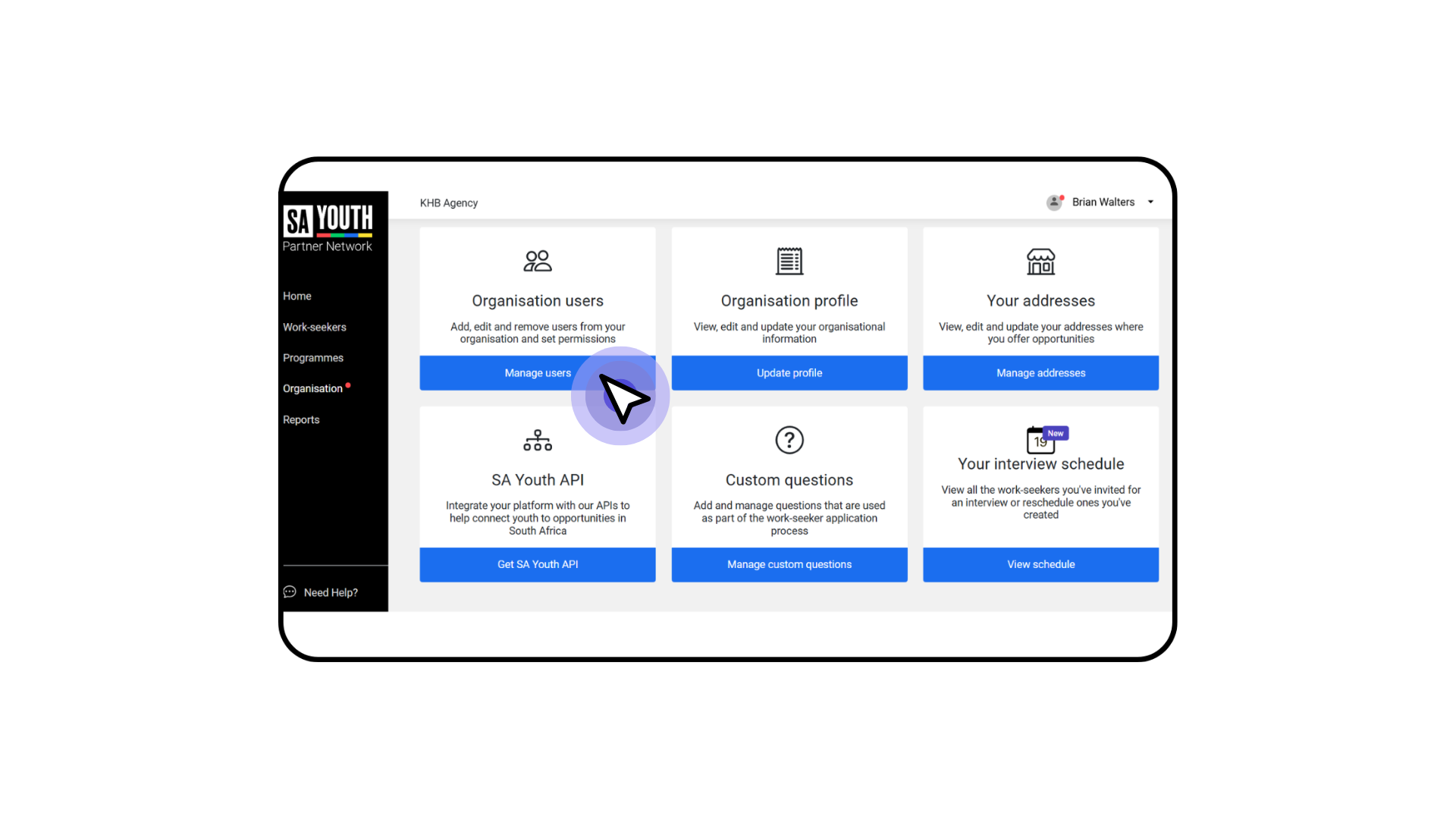
2. In the Organisation users section, click Manage users.
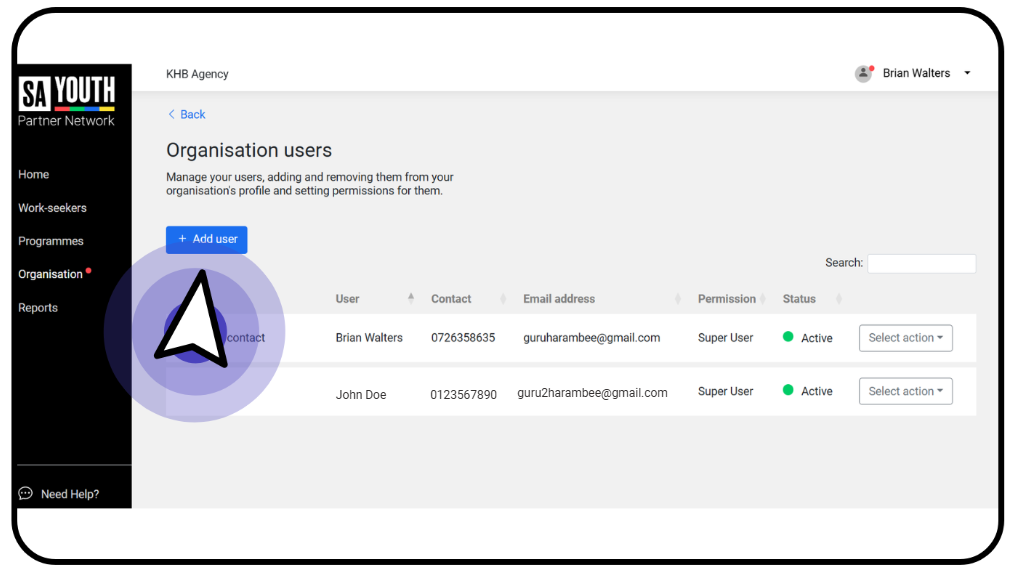
3. To add a new user. Click on the Add user button
4. Enter the details for the user you would like to add
Note: In the Set permissions field, click on the drop down to select whether the user will be a Super User or a View Only user. Users with super user access will have access to create and change for all functions in the partner network. Users with view only access will only be able to view and not be able to make changes on the partner network.
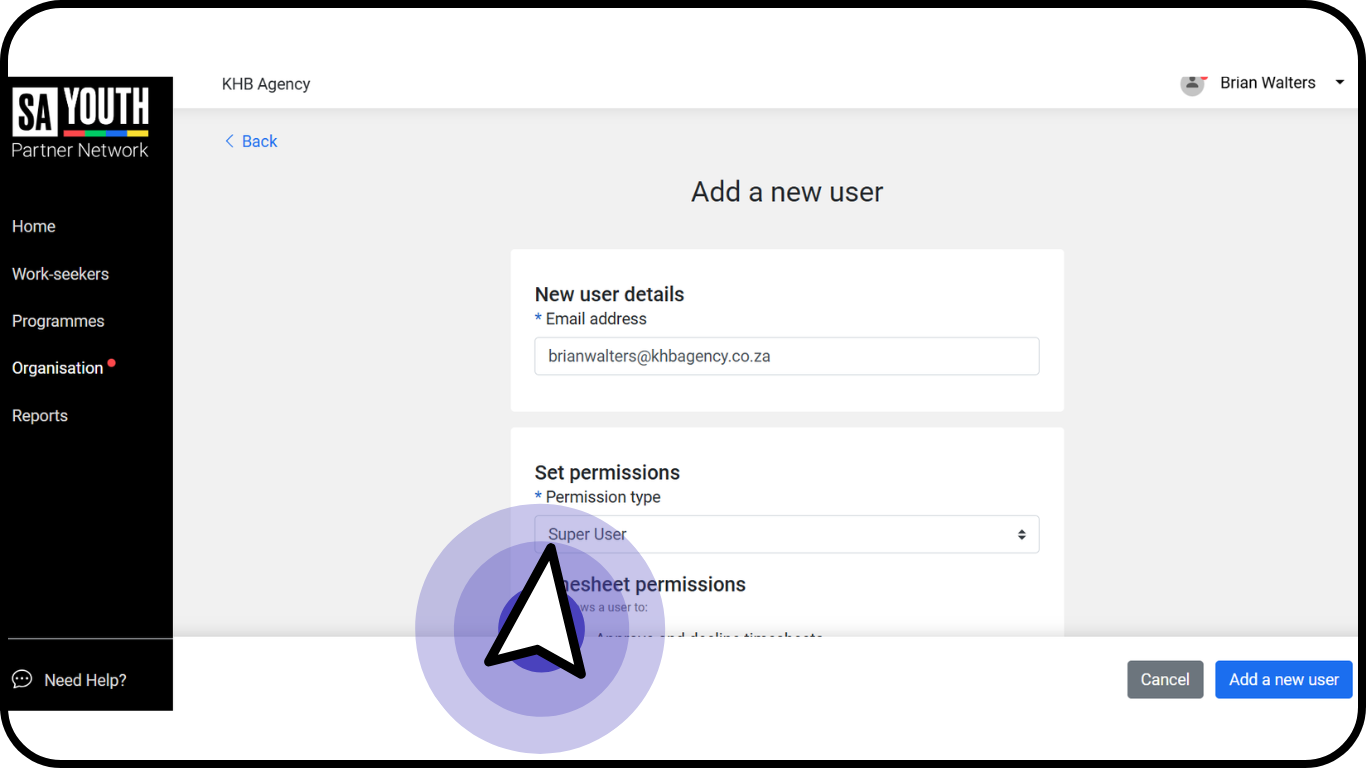
Click on the Add a New User button once all fields are completed.
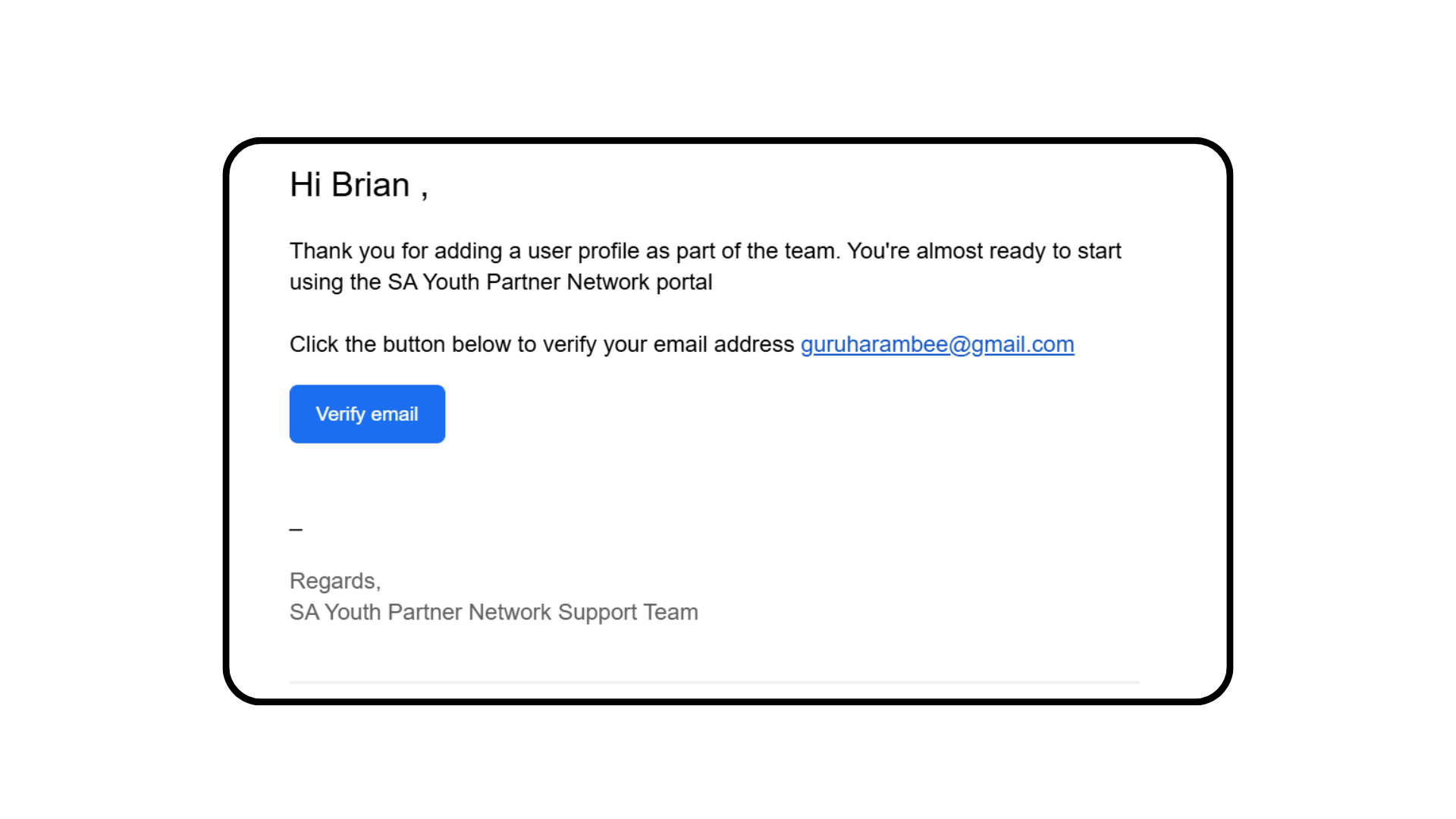
5. The user will receive a verification email, once clicking on the email the user will be led to create a username and password.
Manage existing users on your Partner Network profile
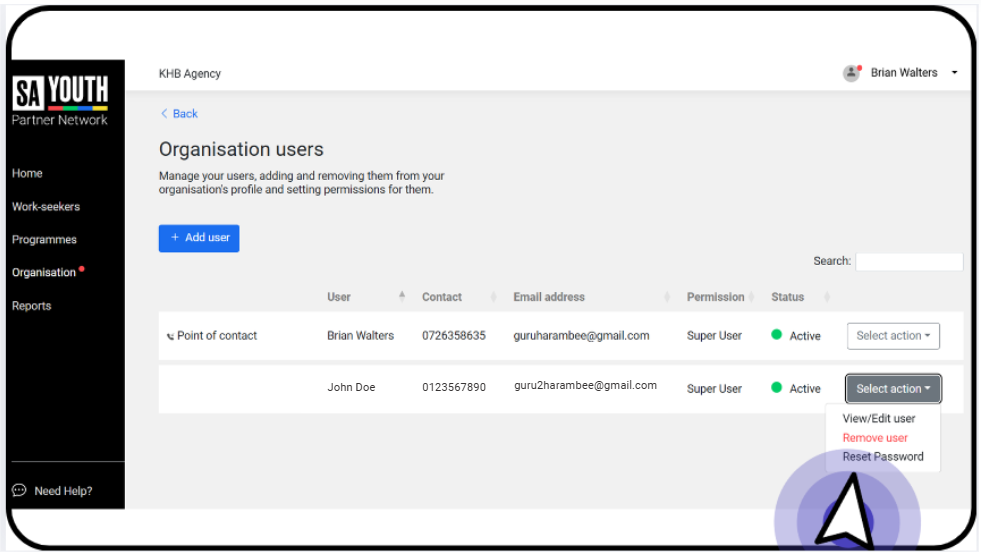
On the manage users screen click on the select action button next to the user you would like to edit.
You are able to:
- View the user details.
- Edit the username, surname, email address, job title, permission type and timesheet permissions.
- Make a user a primary contact.
- Remove a user from your partner network profile.
- Reset a user password.
Removing old user profile on Partner network:
- Click on 'Organisation' on the black panel on your left.
- click on 'Manage Users' under Organisation user.
- click on Select user, on drop down select 'Remove user' and follow prompts to complete removal of old user who left organisation.